
Here’s a step-by-step guide to help you easily link or remove your first Bank Card on Bybit.
Link Your Bank Card
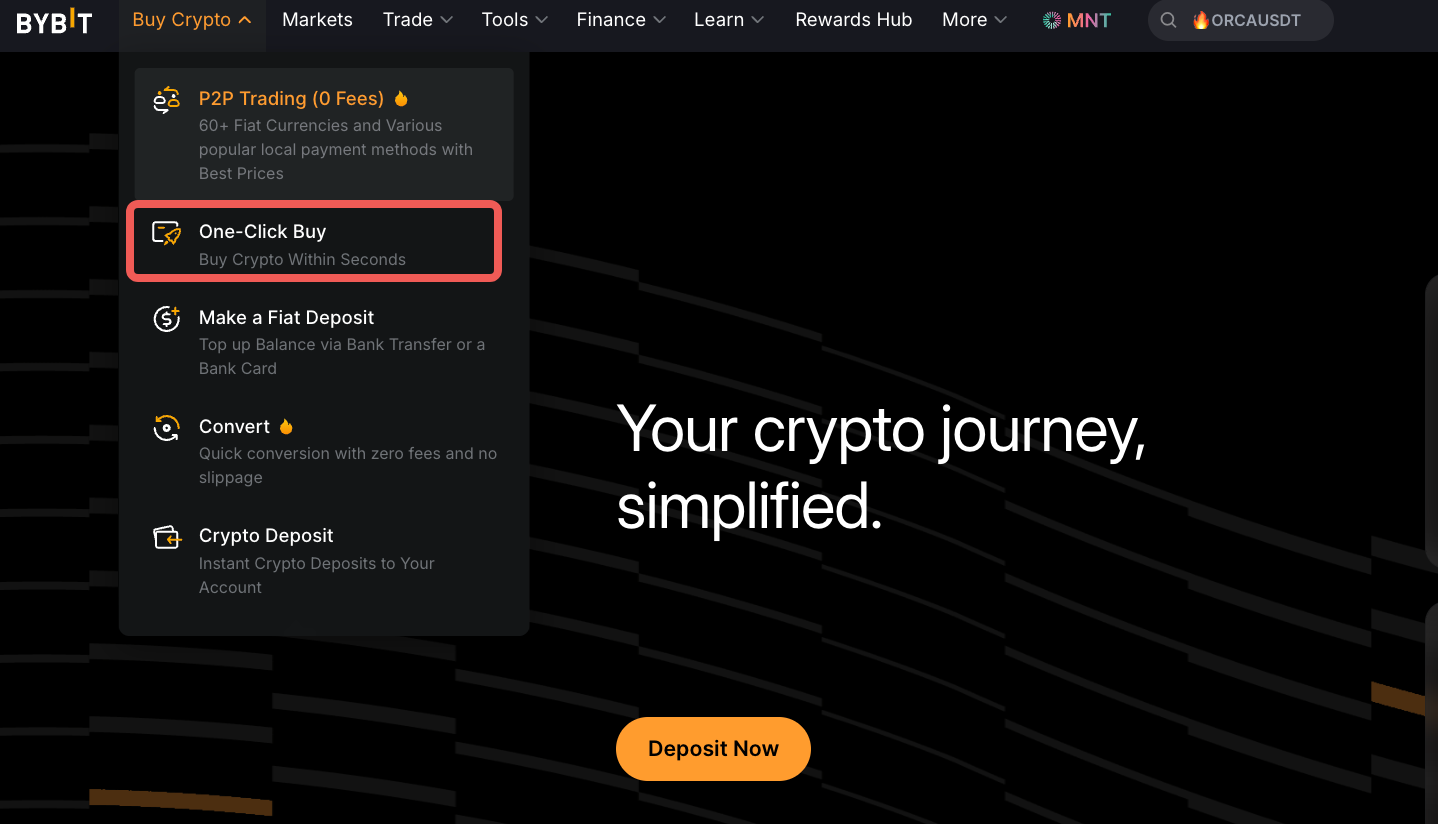
Step 1: Please click on Buy Crypto → One-Click Buy in the upper left corner of the navigation bar to enter the One-Click Buy page.
Step 2: Next, select the fiat currency, coins, and amount you intend to pay.
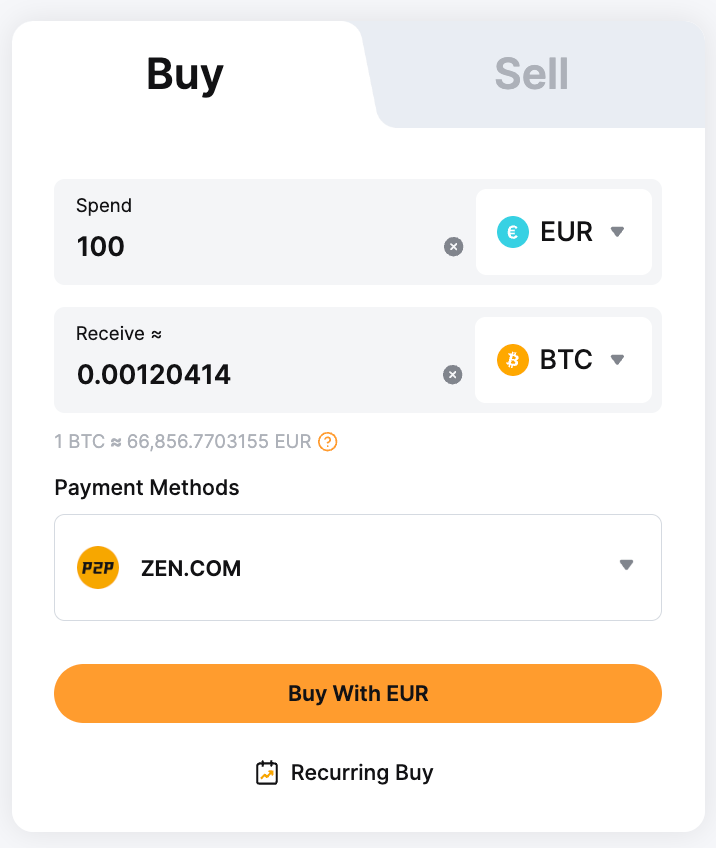
Step 3: On the order confirmation page, click the Payment Methods dropdown list and select Bank Card.
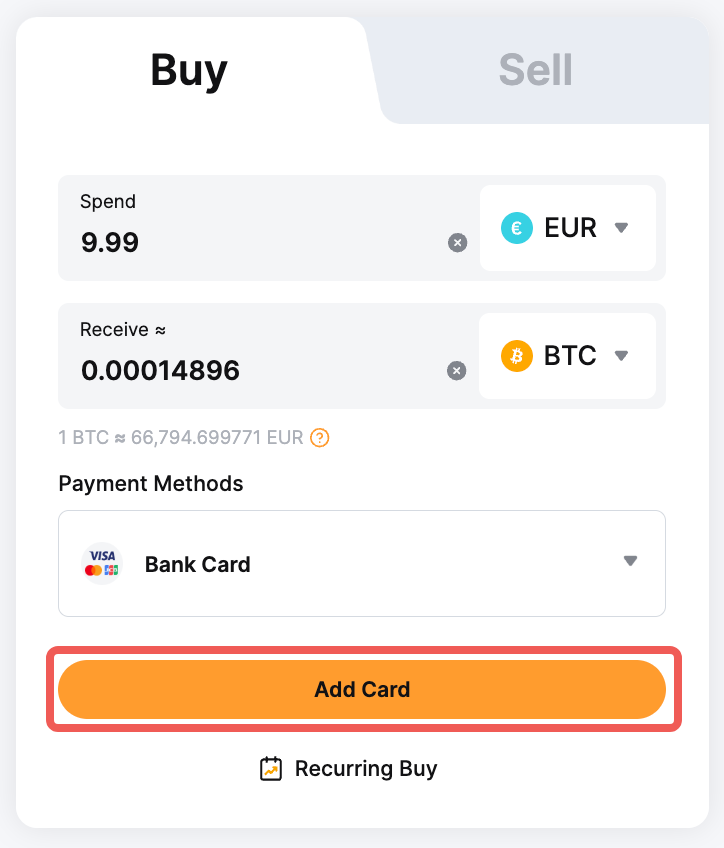
If this is your first time linking your bank card, you are required to add your card details by clicking on Add Card. You will be automatically redirected to the Card Details page to enter your card details.
Step 4: Fill in your card information on the Card Details page. Ensure that all the information you’ve entered is accurate and click on Continue.
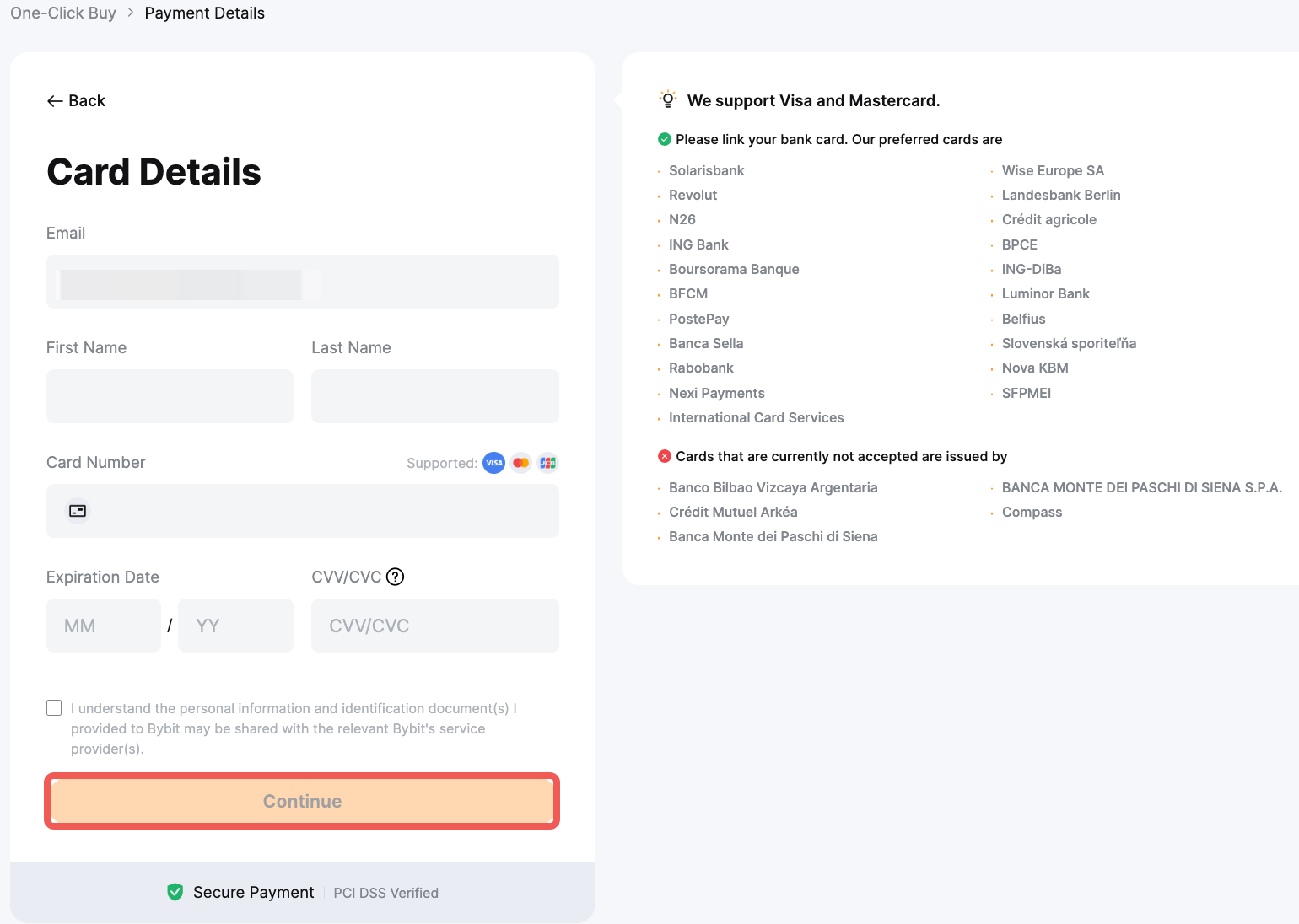
Enter your card information as follows:
- First Name and Last Name
- Card Number
- Expiration Date
- CVV
Notes:
— You may be required to fill in a billing address. Please ensure the billing address entered matches your bank card’s registered address.
— Your bank account name must be consistent with your KYC-verified name on Bybit.
— You can link up to five bank cards.
Step 5: Once your order is confirmed, the card will be automatically linked to your account.
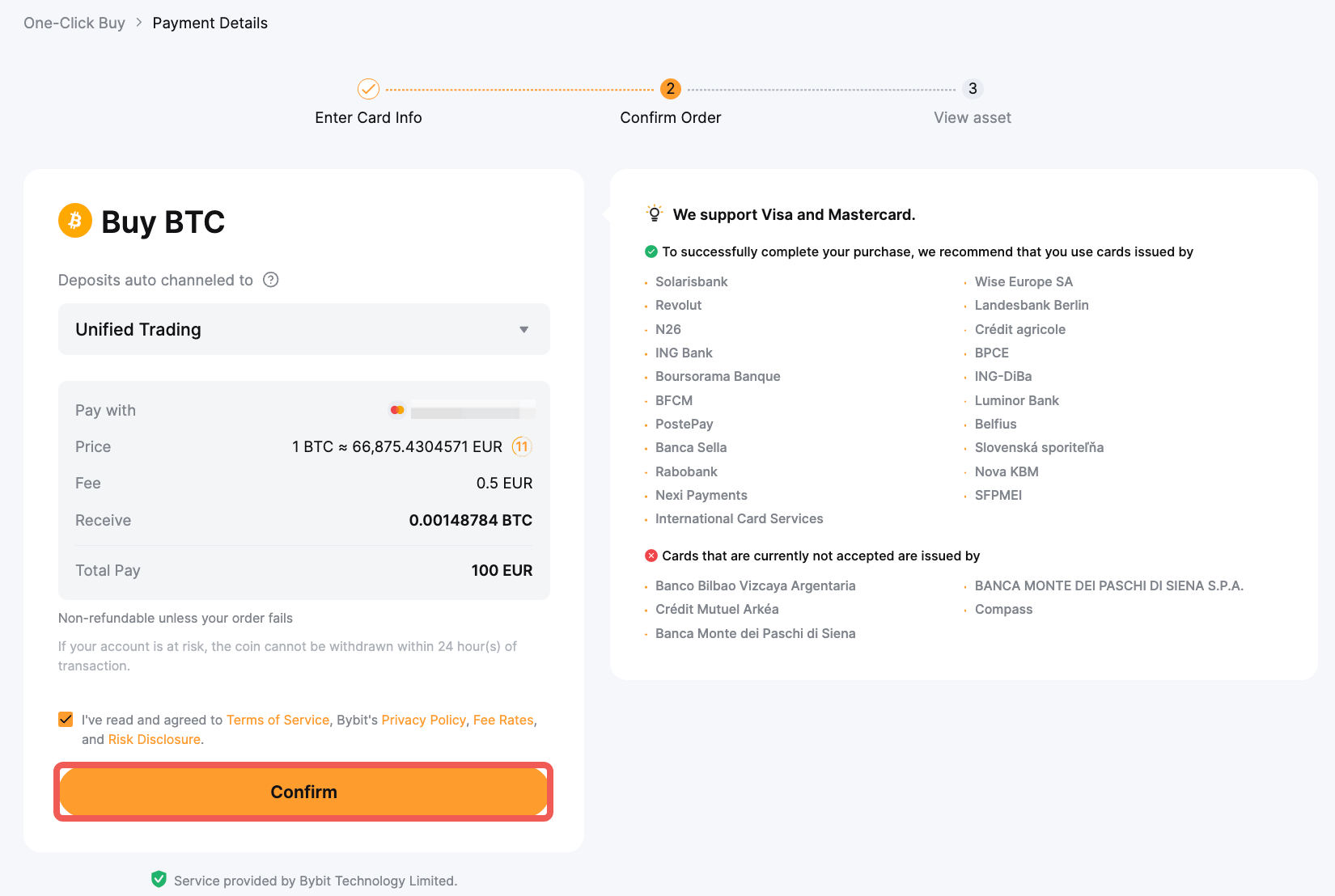
Note: Your card details will not be saved if you do not proceed with the order.
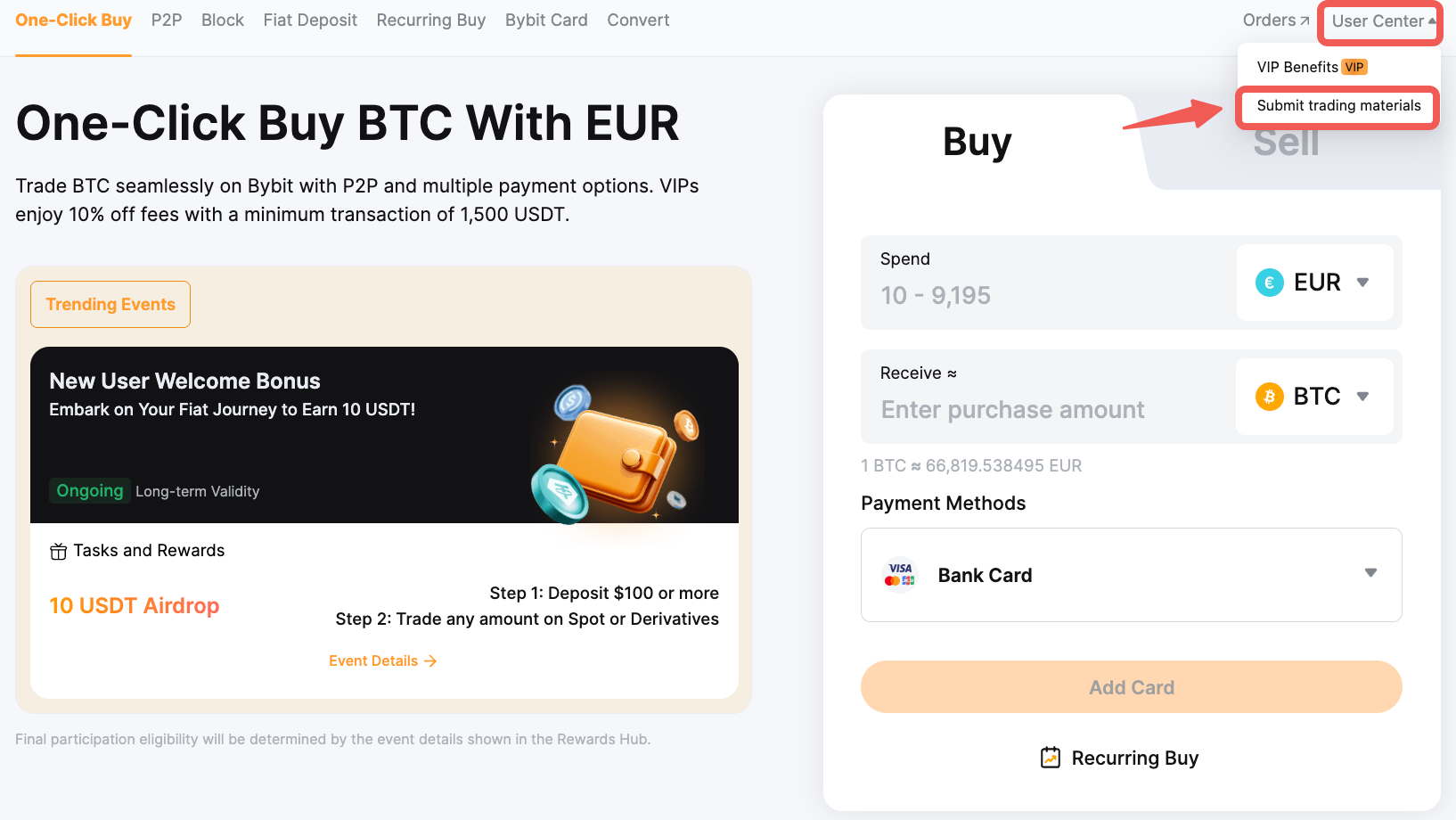
You can view and manage your linked card in the User Center → Submit Trading Materials → One-Click Buy.
Remove Your Bank Card
Step 1: Click on Buy Crypto → One-Click Buy in the upper left corner of the navigation bar to enter the One-Click Buy page.
Step 2: Click on Submit Trading Materials under the User Center in the upper right corner of the One-Click Buy page.
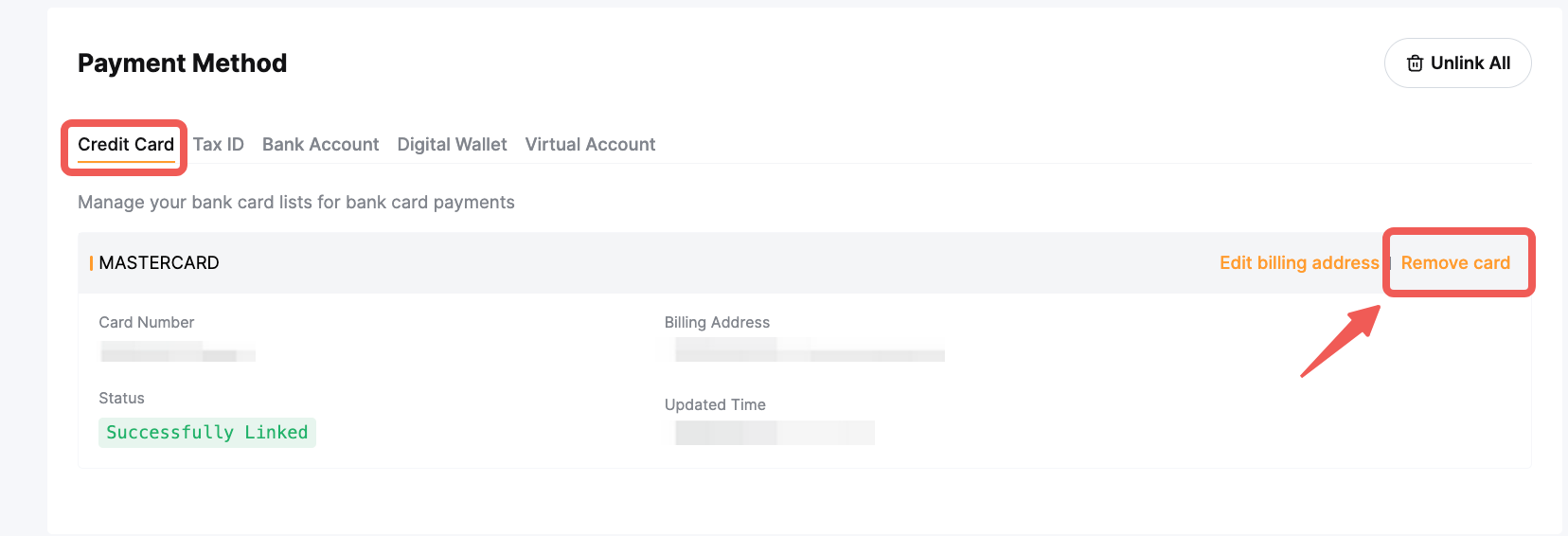
Step 3: Choose the card you want to remove from the list, click on Remove card, and tap on Confirm if you agree to unlink the card.
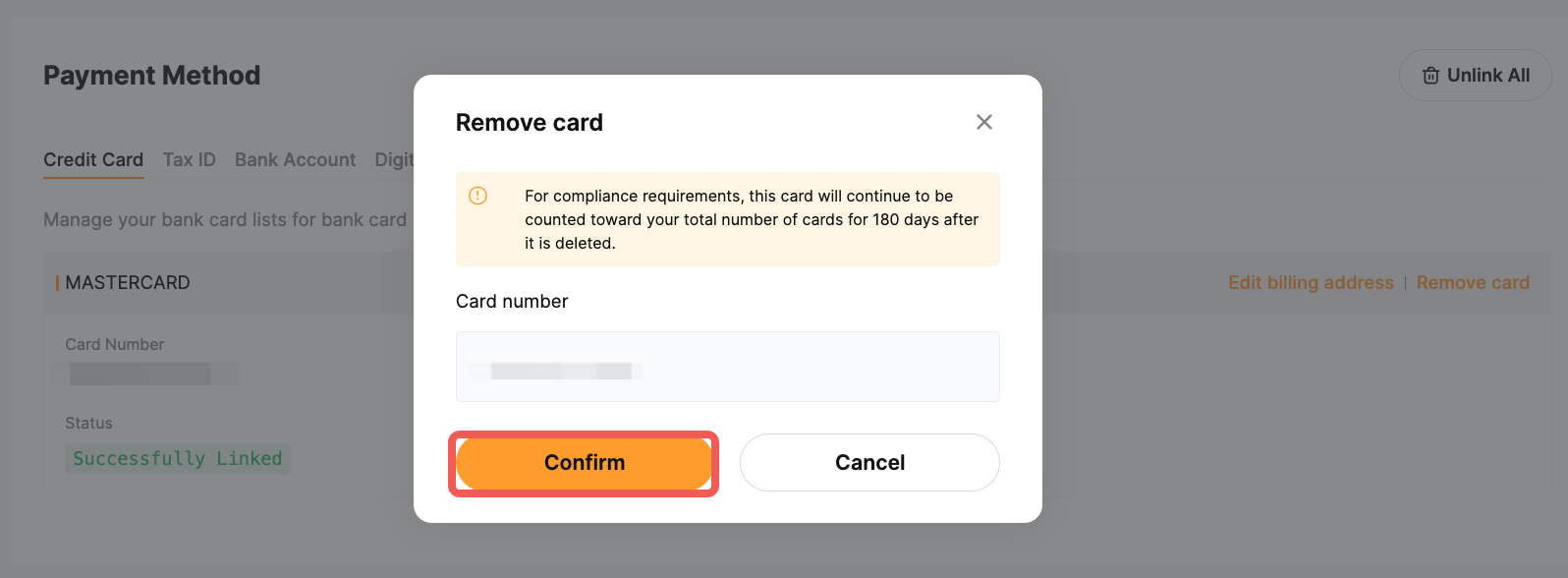
Your card has been successfully removed.